How to Remove the Background from Product Photos
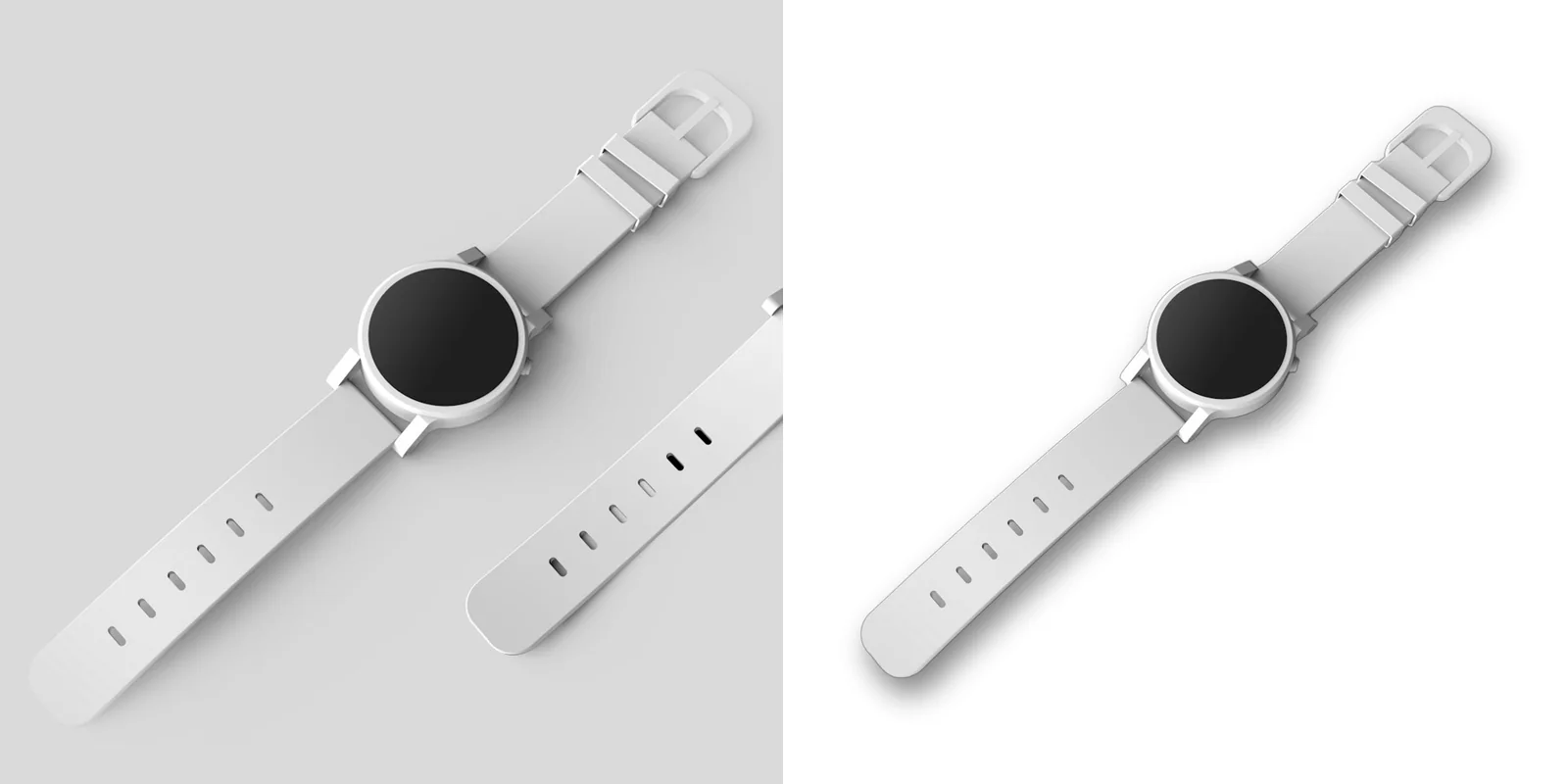
A clean, white background is the fastest way to make a product look professional — and on most marketplaces it is required for the main image. Here is how to get there in minutes, from the photo shoot to a listing-ready file.
Why remove the background from product photos?
- Marketplace rules. Many marketplaces want the main image on a plain white background. Amazon, for example, asks for pure white (RGB 255, 255, 255) with the product filling about 85% of the frame. Rules change, so always check the current guidelines in your seller panel.
- A consistent catalogue. Photos shot on different days, in different rooms, look like they belong together once they share the same background, crop and margin.
- Focus on the product. No clutter, no distracting tabletop, no reflections of your kitchen — just the thing you are selling.
- Reuse everywhere. A transparent cut-out can go on a white listing image, a coloured social media post, a banner or an ad without reshooting.
Shoot a photo that is easy to cut out
AI background removal is good, but it is much better when the photo helps it. Five minutes of preparation saves you editing later:
- Contrast with the background. A white product on a white sheet is the hardest case. Use a background that clearly differs from the product in colour or brightness — a grey or coloured card works well.
- Soft, even light. Shoot near a window on a cloudy day or use two lights from the sides. Hard shadows can be mistaken for part of the product.
- Keep props away from the product. Anything touching the product is likely to be kept as part of it (more on that below).
- Fill the frame, but leave a gap. Get close so you have plenty of pixels, but keep the whole product inside the frame with some space around it. Cropping to a square later will reduce the resolution, so start big.
- Sharp focus. Use a tripod or lean on something. A blurry edge stays blurry after the cut.
Step by step with bgless
- Upload the photo. Open bgless.com and drop your image onto the page, paste it with Ctrl V, or paste an image link. JPG, PNG and WebP up to 20 MB are supported. No sign-up is needed to see the result.
- Let the AI cut it out. The background is removed automatically in about five seconds. For products with very fine detail — jewellery chains, fur, lace, fringes — tick HD model before uploading (or use Reprocess with HD model afterwards). It is slower but sharper.
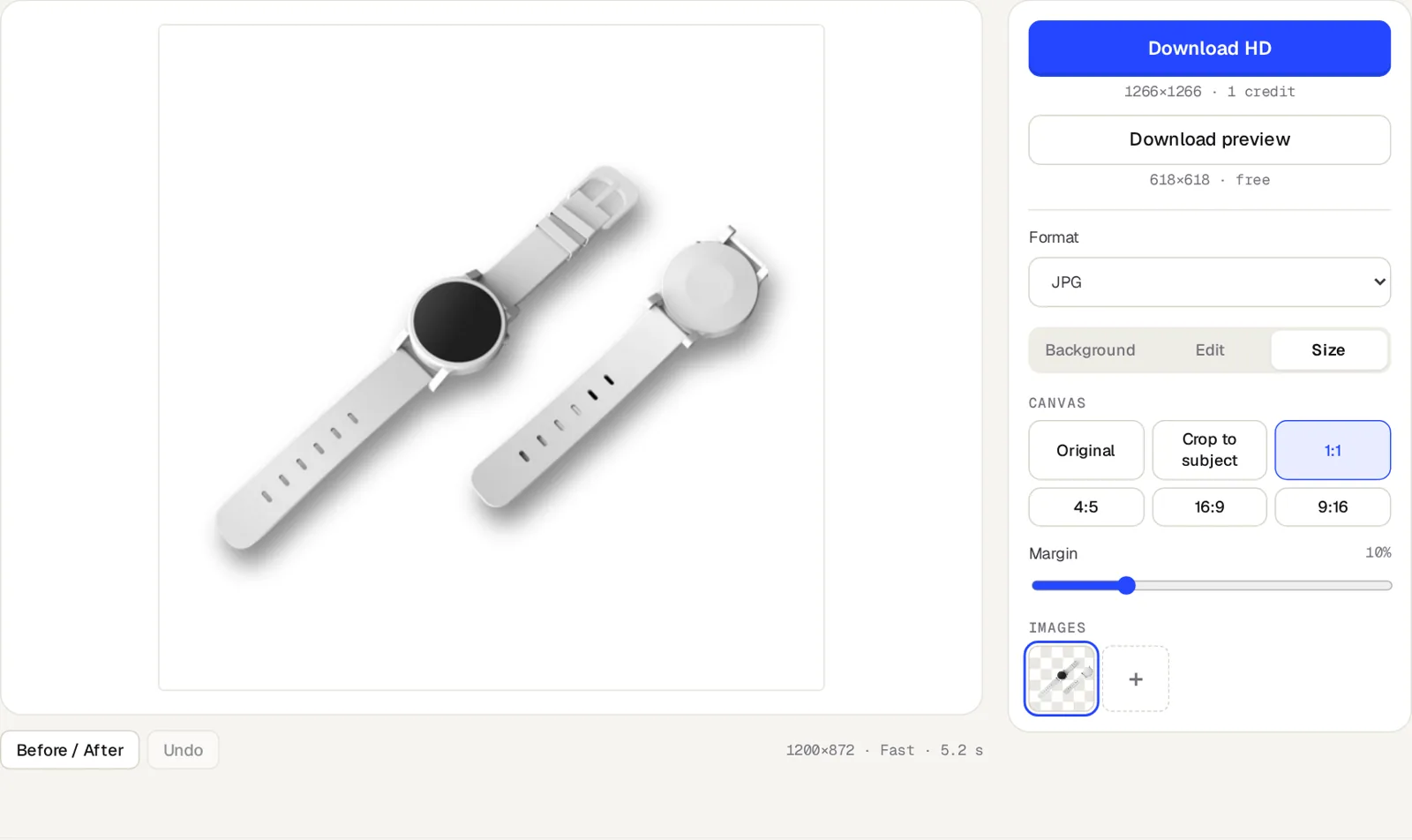
- Clean up if needed. Use Before / After to compare. If something was kept that should not have been, open the Edit tab, pick Erase and brush over it. If part of the product was removed, use Restore — the original photo shows faintly underneath so you can see what you are painting back.
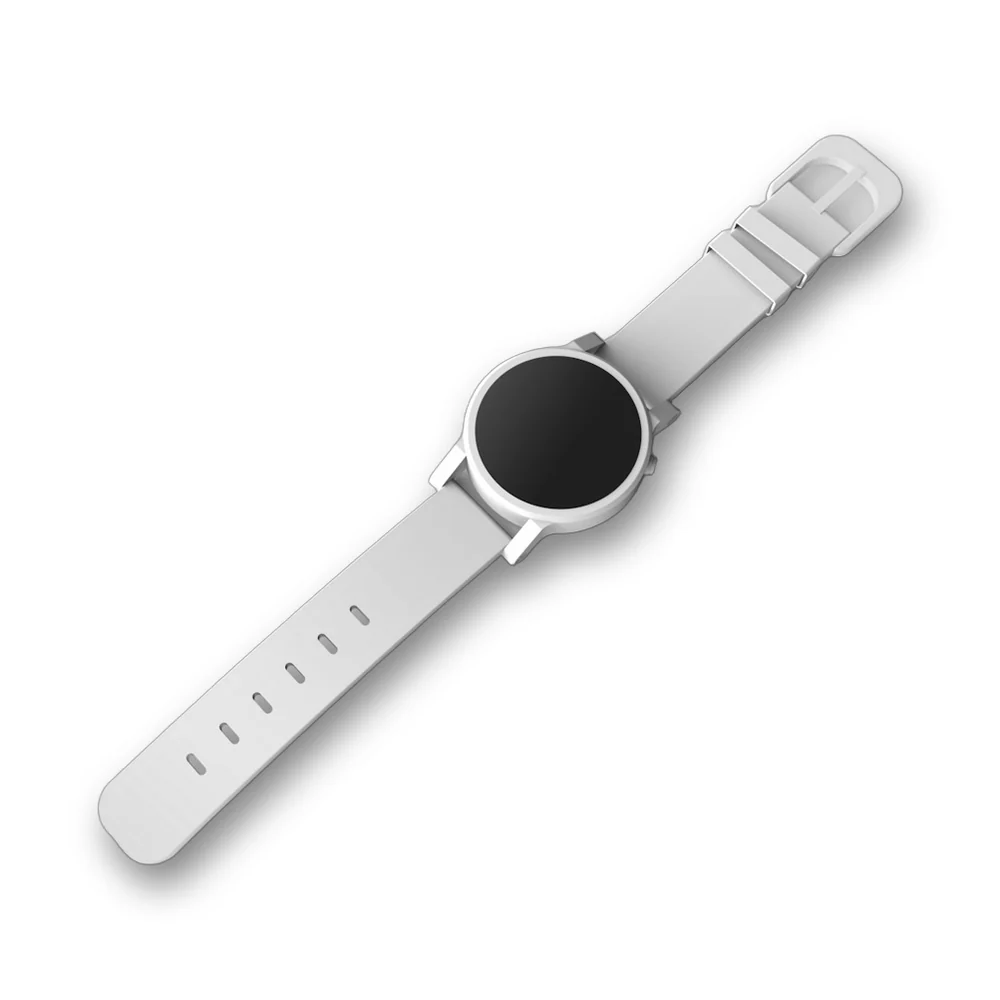
- Make it marketplace-ready. In Background, choose white. In Size, pick 1:1 and set the margin to about 5–7%, which makes the product fill roughly 85–90% of the frame. In Edit, turn on Add shadow if you want the product to look grounded rather than floating.
- Download. Choose JPG for a white marketplace image, PNG if you need transparency, or WebP for your own website. The preview is free; Download HD gives you the full resolution for 1 credit, and re-downloading the same image with other settings costs nothing extra.
Marketplace checklist
Before you upload, run through this list. The exact numbers differ between marketplaces, so treat these as safe defaults and confirm the current rules in your seller panel.
| Background | Pure white (#FFFFFF) for the main image; lifestyle or coloured backgrounds for the extra images. |
| Shape | Square (1:1) is accepted almost everywhere and looks consistent in search results. |
| Product size | The product should fill most of the frame — around 85% is a common target. A 5–7% margin in bgless gets you there. |
| Resolution | At least 1000 px on the longest side so zoom works; 2000 px or more is better. Download in HD. |
| Format | JPG for white-background listings, PNG when transparency is needed. |
| Extras | No text, logos, watermarks or props in the main image. A soft shadow is usually fine. |
Many products: bulk and API
Drop several photos at once and they are processed one after another. Each one keeps its own background, crop and edits, and Download all (ZIP) saves the whole batch in one go.
For a full catalogue, use the API. It is compatible with the remove.bg API, so existing scripts and plugins keep working if you change the URL and the key. This request returns a square-ready, white-background JPG cropped to the product with a 10% margin:
curl -H 'X-Api-Key: YOUR_API_KEY' \
     -F 'image_file=@product.jpg' \
     -F 'size=full' \
     -F 'bg_color=ffffff' \
     -F 'crop=true' \
     -F 'crop_margin=10%' \
     -F 'format=jpg' \
     https://bgless.com/v1.0/removebg -o product-white.jpg
Get a key in your account and see all parameters in the API documentation.
Common problems and how to fix them
Props or the surface are kept
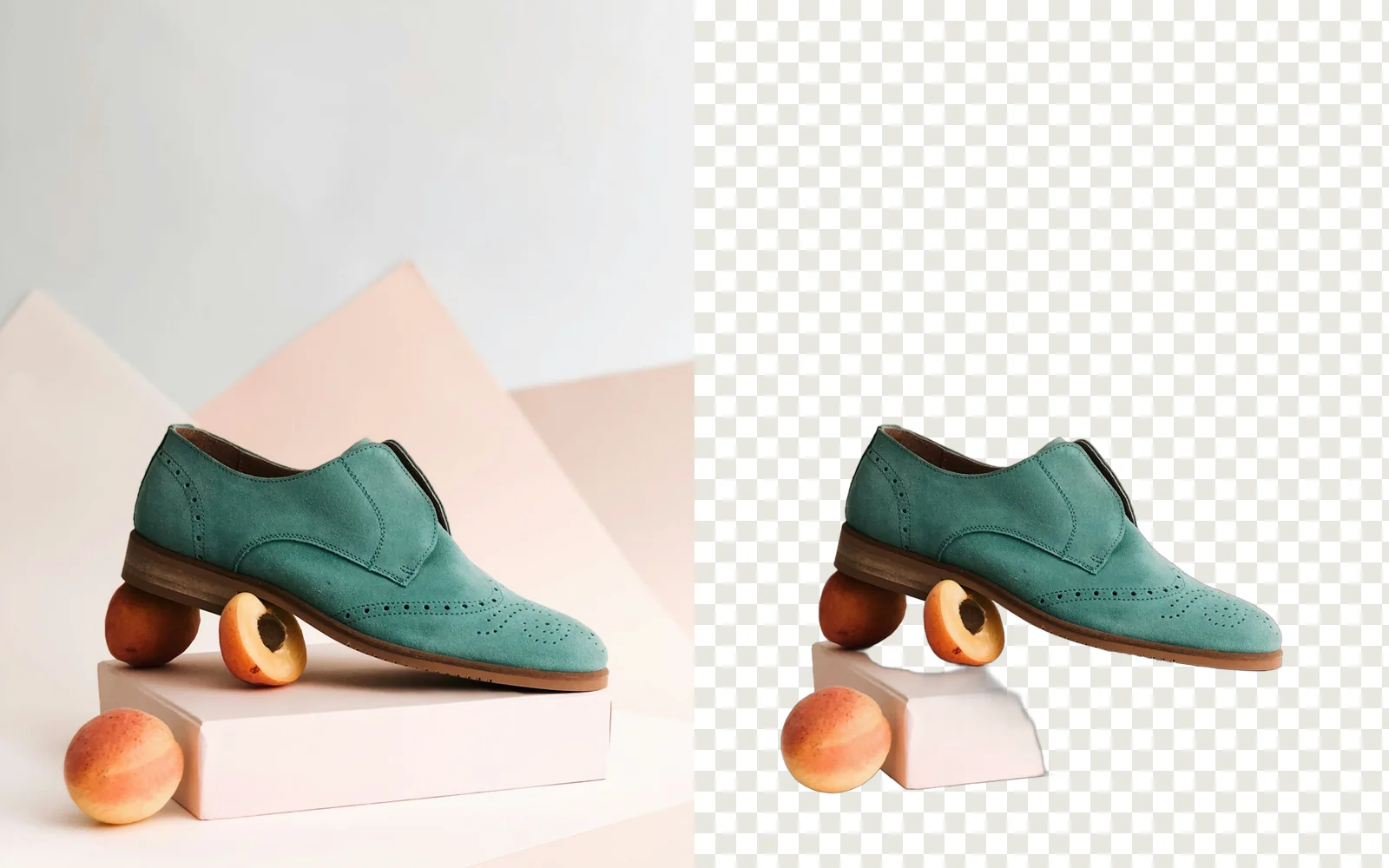
The model keeps everything that looks like part of the subject. Things touching the product — stands, fruit, packaging, hands — are the usual suspects. Erase them with the brush, or better, keep props a few centimetres away when you shoot.
White product on a white background
Low contrast makes edges hard to find. Reshoot on a grey or coloured background; you will replace it with white anyway.
Glass, transparent or shiny products
Bottles and glasses partly show the background through them. Use the HD model, shoot against a plain background, and check the result with the before / after slider.
Fine details look rough
Chains, threads, fur and hair benefit from the HD model. Also make sure the original is sharp and large enough — the model cannot recover detail that is not in the photo.
The image is too small after cropping
Cropping to the product throws away pixels around it. Shoot closer or at a higher resolution, and download in HD rather than the preview.
FAQ
Is it free?
Yes for previews (up to 0.25 megapixels), with no sign-up and no watermark. Full-resolution downloads cost 1 credit, and new accounts get 10 credits for free.
Will the quality drop?
No. HD downloads keep the full resolution of your original, up to 36 megapixels.
Do you keep my photos?
No. Images are only used to process your request and are deleted from our servers within an hour. They are never used to train models.
Can I do this on my phone?
Yes. bgless runs in the browser, so it works on phones and tablets without installing an app.
Try it on your product photo
Previews are free and need no sign-up. New accounts get 10 HD credits.
Remove a background